



I’ll be honest — I almost quit offering content creation services last year.
That’s not something I say lightly. I’ve been helping small businesses across the US with digital marketing for going on six years now. But somewhere around August 2025, I looked at my weekly hours log and realized I was spending nearly 22 hours a week just on video content. For three clients. That’s insane. That’s more than half my working week gone before I touched anything else.
The problem wasn’t skill. I know my way around an editor. The problem was I was running six different tools to produce one finished Reel. Record audio in one place. Edit video somewhere else. Generate subtitles in a third app. Make the thumbnail in Canva. Export from one thing, re-upload into another. And then — my personal nightmare — half those “free” tools would watermark the final export. So I’d need yet another tool to deal with that.
My client Marcus runs a barbershop in Atlanta. Good guy, growing business, needs content consistently. He came to me frustrated because his previous marketing person was charging him $800/month and delivering maybe four posts. I took over and immediately hit the same wall — the tools just weren’t built for the pace a small business actually needs.
That’s when I started using FlexClip seriously. Not just clicking around it — actually building Marcus’s entire content workflow inside it. Then did the same for a jewelry shop owner in Portland named Diane. Then a fitness coach in Dallas, Tony. Three very different businesses. Same tool.
And look — it worked better than I expected. Faster than I expected. With less back-and-forth than I’ve had with any other platform.
This guide is going to walk you through exactly what I did. Step by step, in the order that actually makes sense. If you want broader context on how FlexClip fits into the larger world of free AI tools for content creation, I’ve got a full breakdown in my pillar guide here — worth reading before or after this.
But right now, let’s just get you making something.
Step 1: Getting Started with FlexClip (Account & Dashboard)
Sign up takes maybe three minutes. Go to flexclip.com, hit the button, use your Google account if you want to skip the email verification. You’re in.
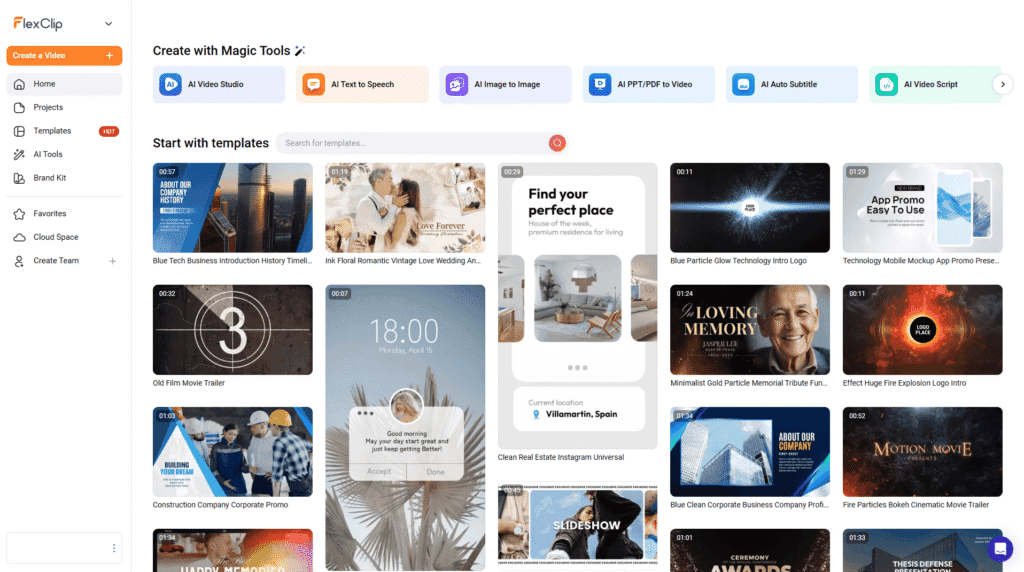
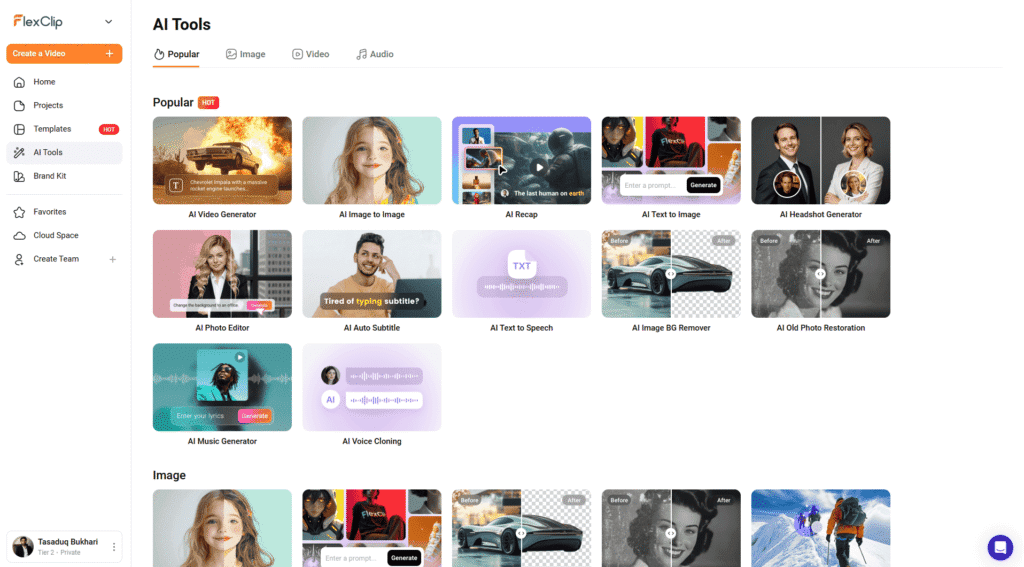
The dashboard isn’t cluttered. That matters more than people give it credit for — I’ve seen tools that have every feature imaginable and a UI so chaotic that nobody actually uses half of it. FlexClip doesn’t do that. Left sidebar has your projects, templates, AI tools, media library, brand kit. Top of the screen has quick-create buttons. That’s it.
First thing I tell every client: set up your Brand Kit before you touch anything else. Upload the logo. Drop in the hex codes for your brand colors. Set your fonts. Five minutes now saves you from manually re-doing this on every single project. Marcus’s barbershop has a specific shade of burgundy — I put it in the brand kit on day one and haven’t had to think about it since.
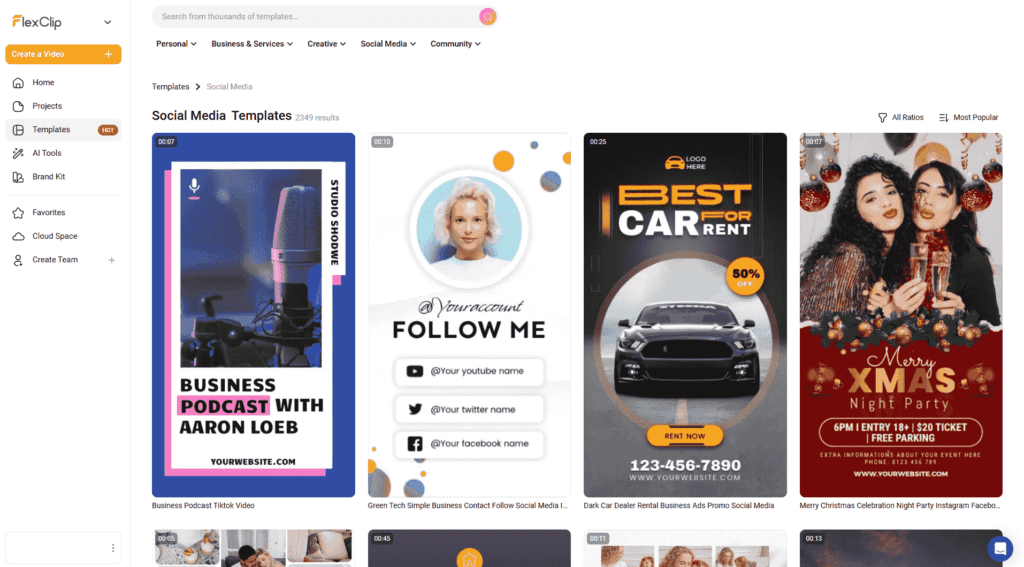
Then browse the template library. Filter by your industry. FlexClip has decent templates for restaurants, real estate, fitness, retail, service businesses. Starting from a template cuts your creation time way down, especially when you’re just getting familiar with the platform.
The AI Tools section in the sidebar is where you’ll spend most of your time. Click it and you’ll see: Text to Video, AI Voiceover, Subtitle Generator, Thumbnail Maker, Meme Generator, GIF Maker, Background Remover. All right there. All accessible from the same login.
That consolidation is the whole point.
Step 2: Creating Your First AI Video from Text
This is the feature that changed how I work. The AI text to video generator free inside FlexClip takes a script — or even just a rough prompt — and builds a draft video. Stock footage matched to your content, transitions, music, text overlays. In about 90 seconds.
Here’s how you do it:
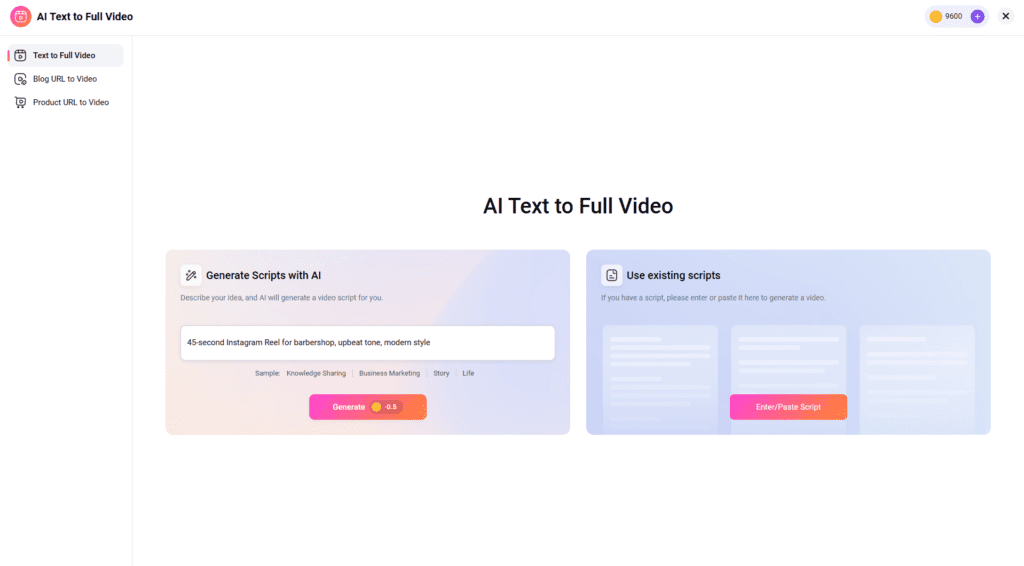
Open Text to Video from the AI Tools menu. You get a prompt field and style options — cinematic, social, corporate, energetic, and a few others.
Write your prompt or paste a script. If you’re new, use the prompt option. Keep it specific. Don’t just write “barbershop video.” Write something like: “45-second Instagram Reel for a modern Atlanta barbershop, upbeat tone, showing haircuts and beard trims, welcoming neighborhood feel.” The more specific you are, the less you’ll need to fix afterward.
Pick your aspect ratio. 9:16 for Reels, Shorts, TikTok. 16:9 for YouTube. 1:1 for Instagram feed. This isn’t complicated but it’s easy to forget and annoying to fix later.
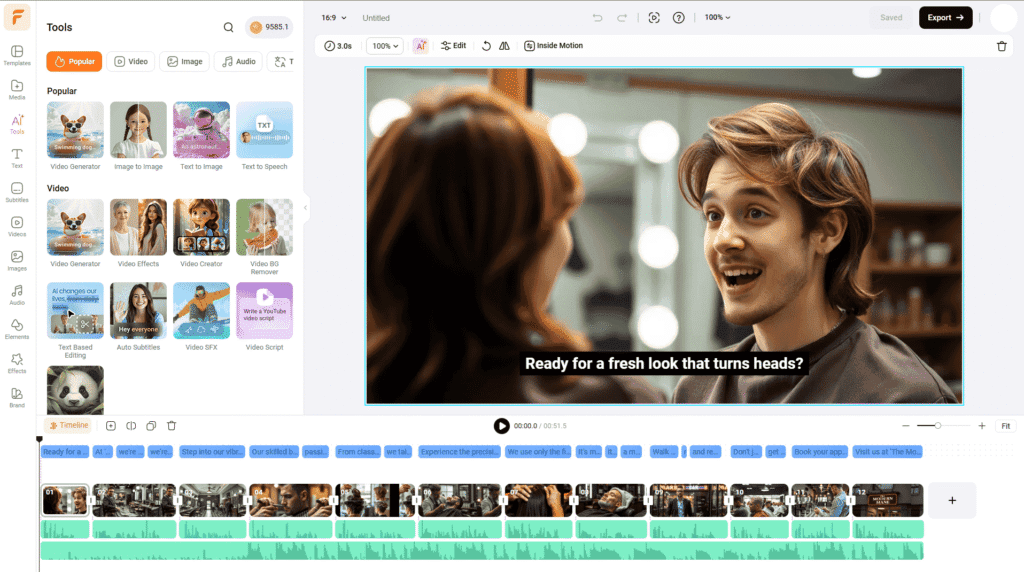
Hit Generate and wait. Ninety seconds, give or take. What comes back is a rough draft — scenes matched to your script, music underneath, text placed on screen. It won’t be perfect. Some clips will be off. Plan to spend another 15–20 minutes swapping scenes and adjusting text.
Edit what needs editing. Click any scene to swap the footage. Drag clips to reorder. Adjust timing. Change the music if the default track isn’t right for your brand. The free AI video editor online interface here is drag-and-drop — no timeline experience needed.
I Personally Tested This: I typed a 55-word prompt on a Tuesday afternoon. Generated the video. Swapped three clips that felt too generic — one was a stock footage haircut that looked nothing like the barbershop’s actual style. Changed the font on the text overlay to something bolder. Adjusted the music from the default to something with more of an R&B feel. Hit export.
Total time: 24 minutes. Marcus posted it that evening. It was the highest-performing Reel his account had ever had — 4,200 views, 180+ saves. He texted me at 11pm like “what did you do different.”
Nothing wild. Just faster tools.
👉 Try FlexClip AI Text to Video Free
Step 3: Adding Voiceover, Subtitles & Text Animations
Video structure locked in? Good. Now we layer in the stuff that makes it actually feel professional.
AI Voiceover
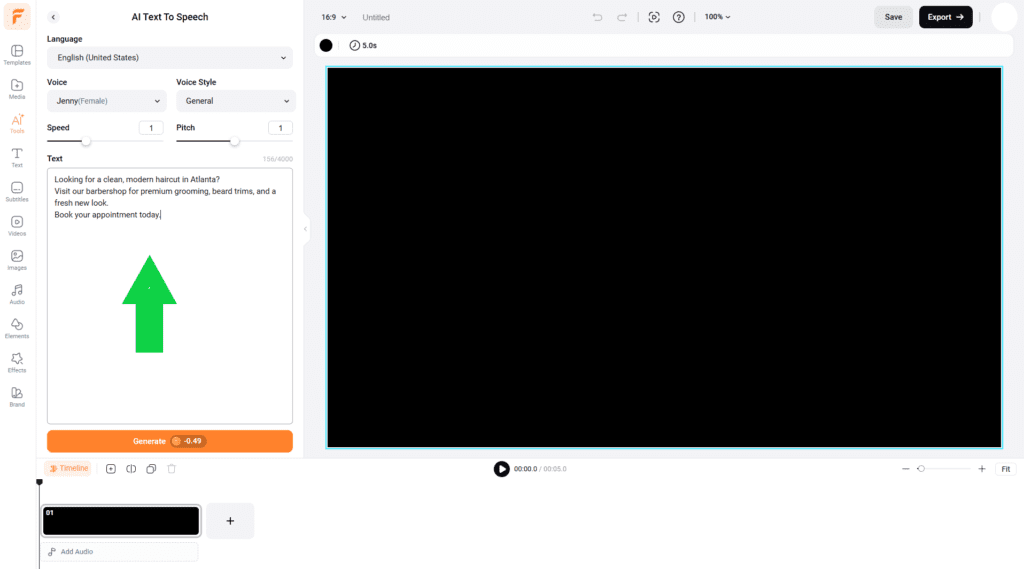
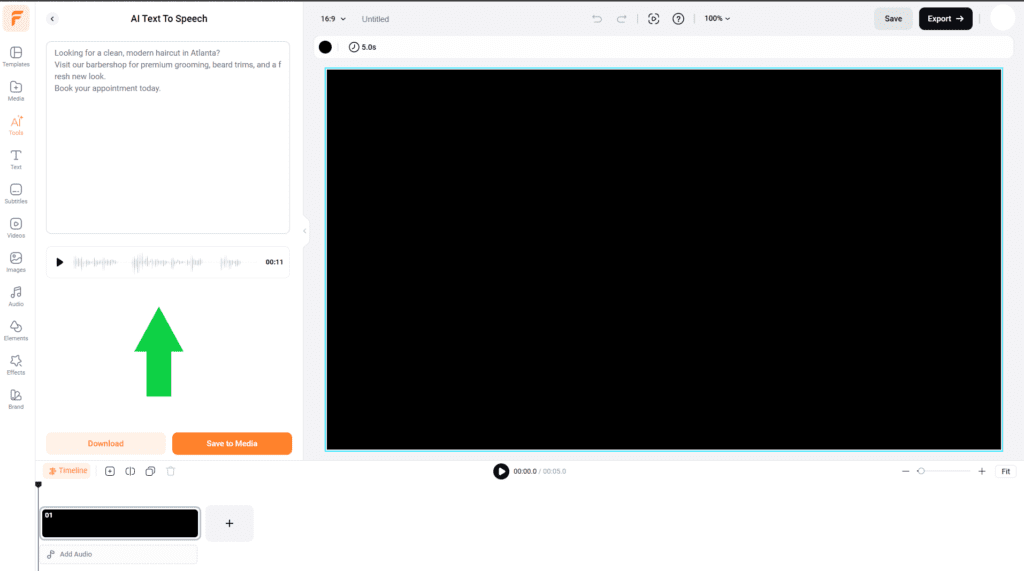
In the editor, there’s a Voiceover panel on the right side. The free AI voice generator online here gives you 40+ voices. Different genders, different accents, different tones.
For USA-based content I’ve tested a bunch of them. Three I keep coming back to:
- James — American male, warm and steady. Works for service businesses, financial content, anything that needs to feel trustworthy.
- Sophia — American female, friendly without being chirpy. Good for retail, lifestyle, wellness brands.
- Alex — neutral American accent, clean and professional. Real estate, corporate, educational content.
Type your script, pick your voice, adjust the speed if you need to, generate. The AI text to speech generator free builds the narration in about 15 seconds. Then you drag it into your video timeline and sync it to your scenes.
Diane, my Portland jewelry shop client, is intensely camera-shy. Won’t appear on video. Period. So every product video I made for her uses AI voiceover — Sophia, slowed down slightly, which gives it a slightly more luxurious feel. Three customers in the first week mentioned they loved the narration. One asked if Diane had hired a professional voice actress.
She had not. It was a free AI voiceover generator. Zero dollars.
I Personally Tested This: Compared FlexClip’s AI generated voice free output against ElevenLabs on the same 45-second script. ElevenLabs won on naturalness for a careful side-by-side listen. But I played both to three people without telling them which was which — two couldn’t tell the difference on the short clip. For social media content under 60 seconds, FlexClip’s free ai voiceovers are genuinely competitive.
AI Subtitle Generator
Look, subtitles in 2026 are table stakes. I know everyone’s heard this but it bears repeating — most social video is watched without sound. If you’re not captioning your videos, you’re cutting your effective reach roughly in half.
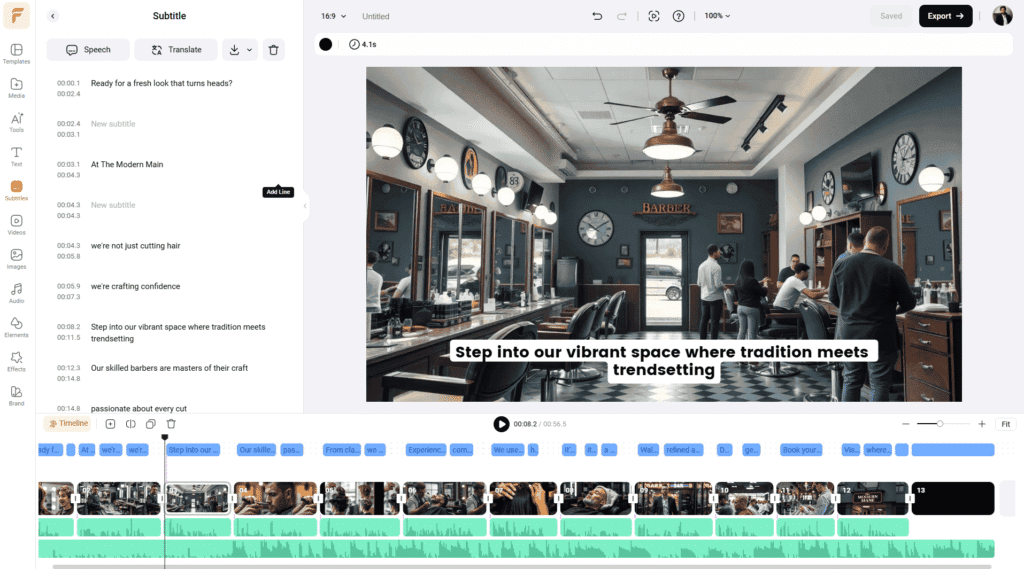
FlexClip’s free AI subtitle generator transcribes your audio and drops synced captions right onto the video. In my testing it hits about 92–95% accuracy on clean American English audio. That means on a 60-second clip you’re fixing maybe 5–8 words. Takes under five minutes.
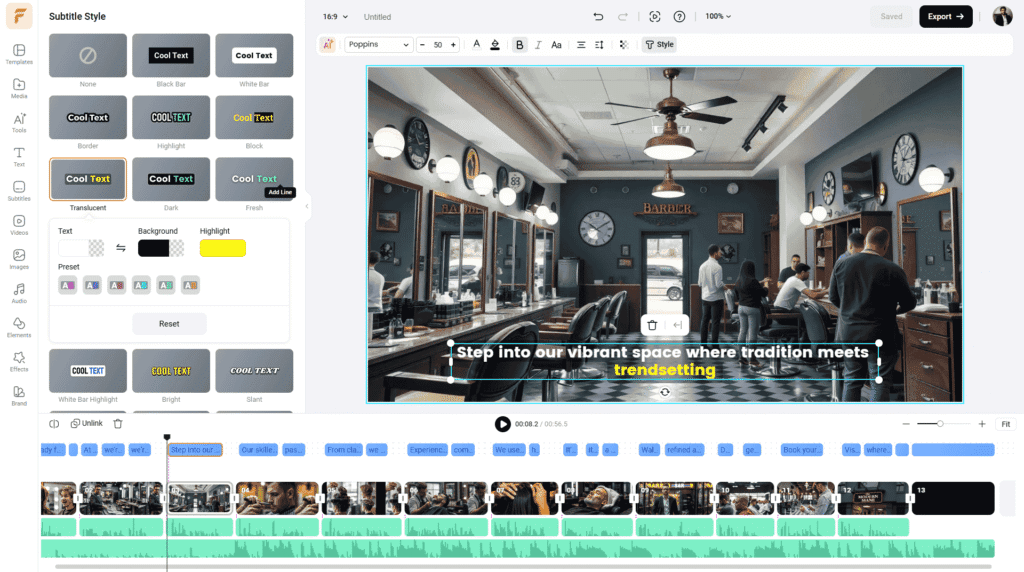
Then you style them — font, size, color, background, position. The text animation maker free options inside FlexClip let you add motion to the subtitles: pop-in, bounce, fade. That animated caption style performs well on Reels and TikTok right now.
I Personally Tested This: Marcus’s barbershop Reel: ran it through the AI subtitle generator for video. Got 94% accuracy on first pass. Fixed four words. Styled in white bold text on a dark semi-transparent strip. The whole subtitle process took six minutes. In CapCut that same process took me closer to 25 minutes because I was doing more of it manually.
Animated Text Overlays
Beyond subtitles, FlexClip has a solid library of free animated text options for titles, callouts, lower thirds, promotional overlays. The “BOOK NOW” or “LIMITED SPOTS” type text that you see on high-performing service business Reels — that’s what this is for. Click Text in the editor, pick an animation style from the free animated text generator library, type your message, position it, done. Maybe 90 seconds per text element.
Step 4: Making Thumbnails, Memes & GIFs
This is where FlexClip does something most video tools don’t bother with.
YouTube Thumbnail Maker
Tony — my Dallas fitness coach client — had a YouTube channel with decent content and terrible thumbnails. Like, really bad. Blurry text, wrong contrast ratios, no clear focal point. His average CTR was 2.9%.
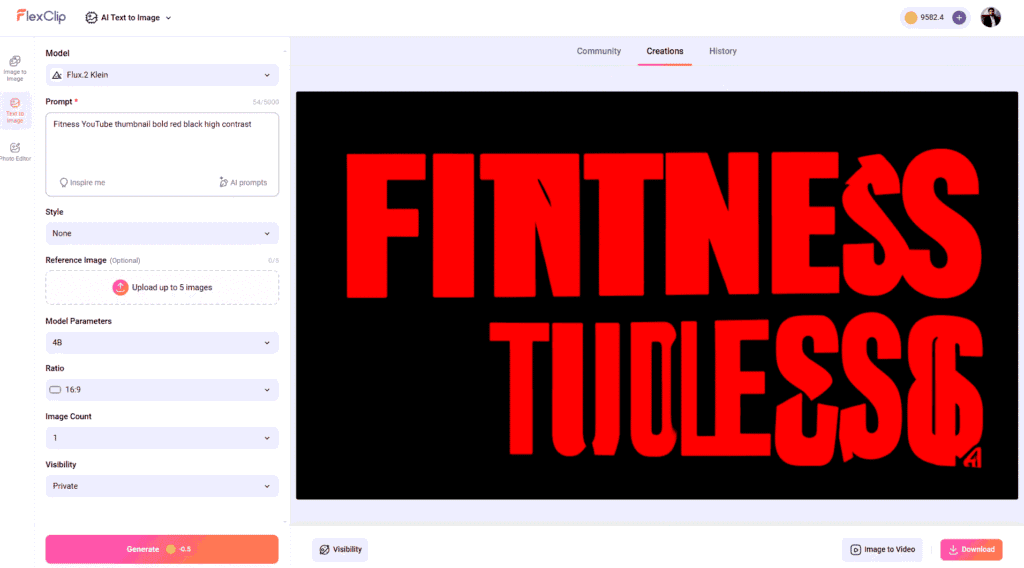
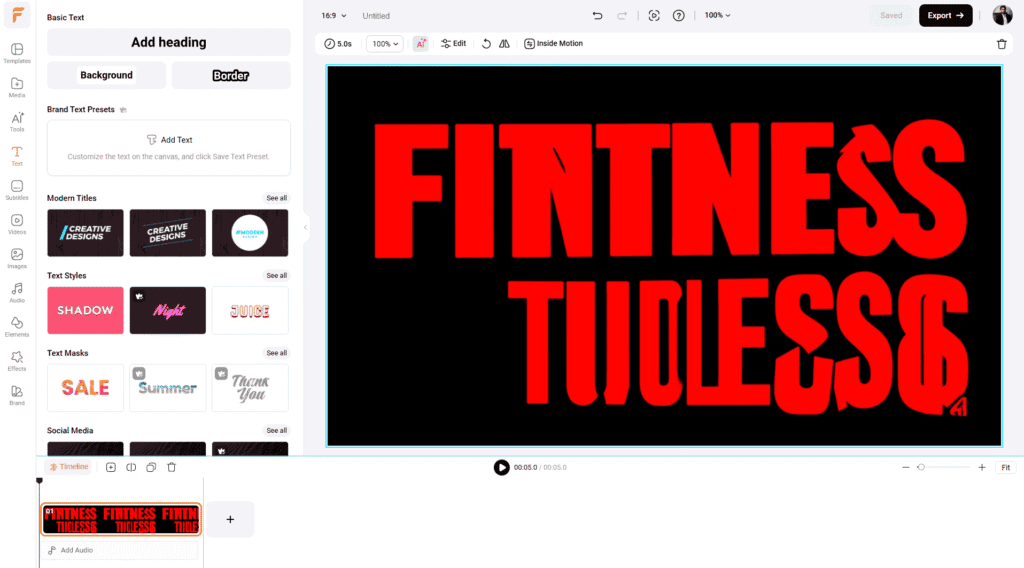
I used FlexClip’s free AI YouTube thumbnail maker to redo his thumbnails. You type in your video title, pick a style, and the AI YouTube thumbnail generator spits out several layout options. High contrast, bold text placement, clear visual hierarchy. I’d grab a frame from the video as the background image, apply one of the AI-suggested layouts, swap in Tony’s brand colors, adjust the title text, export.
Eight minutes per thumbnail once you know the workflow.
His CTR went from 2.9% to 4.4% average across the six videos we updated. Make of that what you will — it’s not a controlled study — but the thumbnails got better and the clicks went up.
I Personally Tested This: Built thumbnails for a 6-video YouTube series. The youtube thumbnail generator ai suggested high-contrast red and black layouts — exactly the style that performs in fitness content. Used the youtube thumbnail maker ai text tools to add bold title overlays with a slight drop shadow. Whole process per thumbnail: 8 minutes after the first one, maybe 12 on the first attempt.
AI Meme Generator
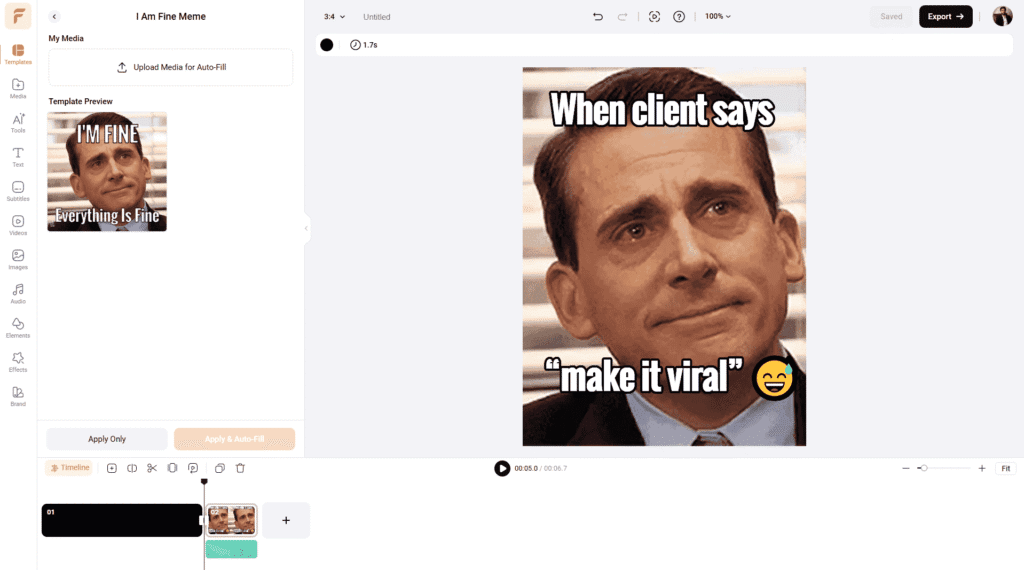
I know. “Memes for business” sounds like something a 2018 marketing blog would suggest ironically. But for B2C businesses targeting anyone under 45, meme content genuinely outperforms polished promotional posts on engagement. Consistently. That’s just where social attention goes.
The free AI meme generator in FlexClip has trending format templates. You pick one, add your text, export. Marcus’s barbershop runs a Monday meme series. Simple, takes maybe 8 minutes to make using the AI meme maker. Their AI generated memes posts average three times more shares than their promotional content.
GIF Maker & Background Remover
The free AI GIF maker converts short video clips into looping GIFs. Useful for email marketing — GIFs in emails still outperform static images on click rates — and for some social contexts. Use the AI gif creator to clip your footage down to 3–5 seconds, set the loop, export. Done.
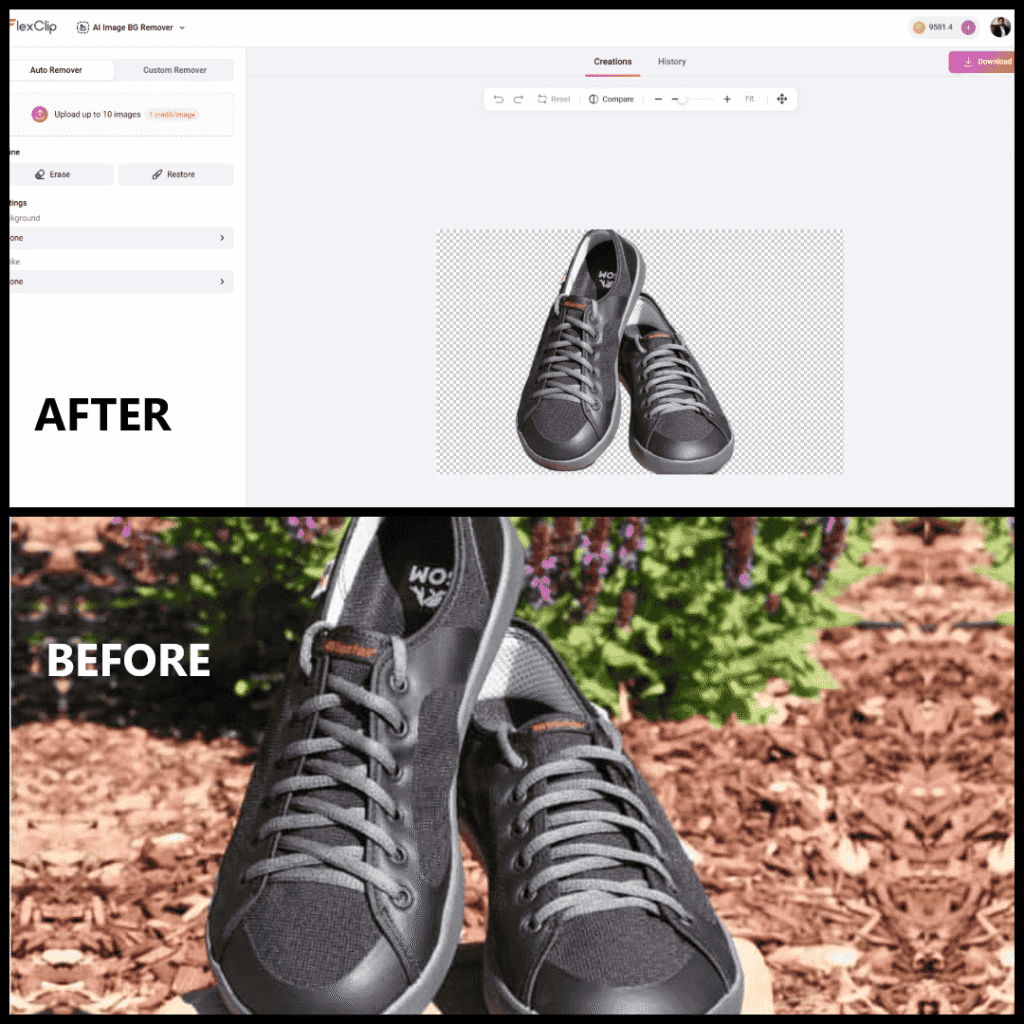
Background remover: upload a product photo, one click, background gone. The transparent image maker quality is solid — I ran 20 product photos for Diane’s jewelry shop through it. 16 came out clean first pass, 4 needed a little edge cleanup. Comparable to dedicated tools like Remove.bg and it’s already in the same platform you’re using for everything else.
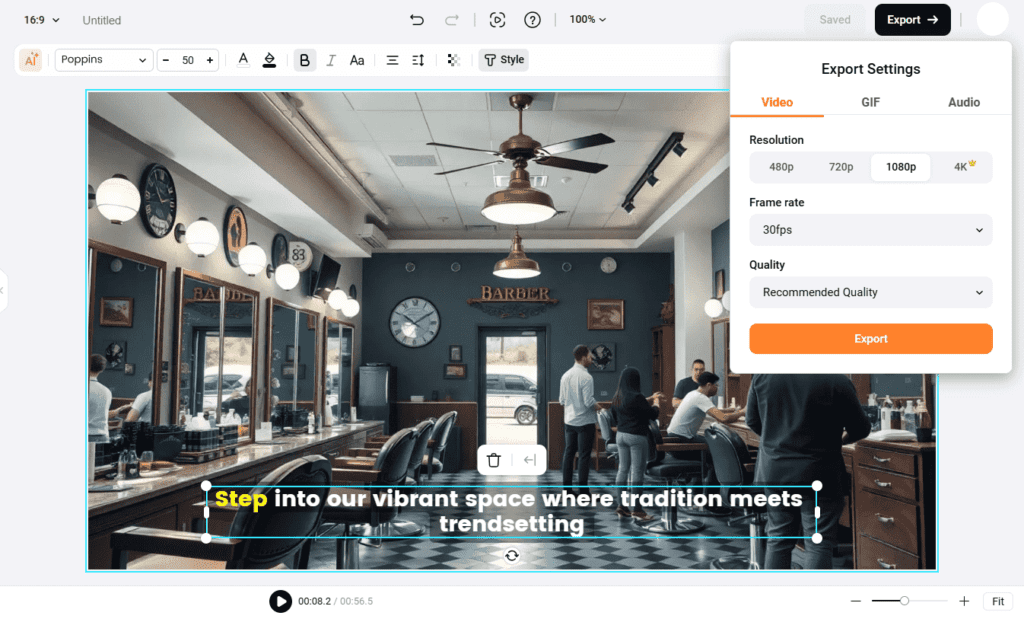
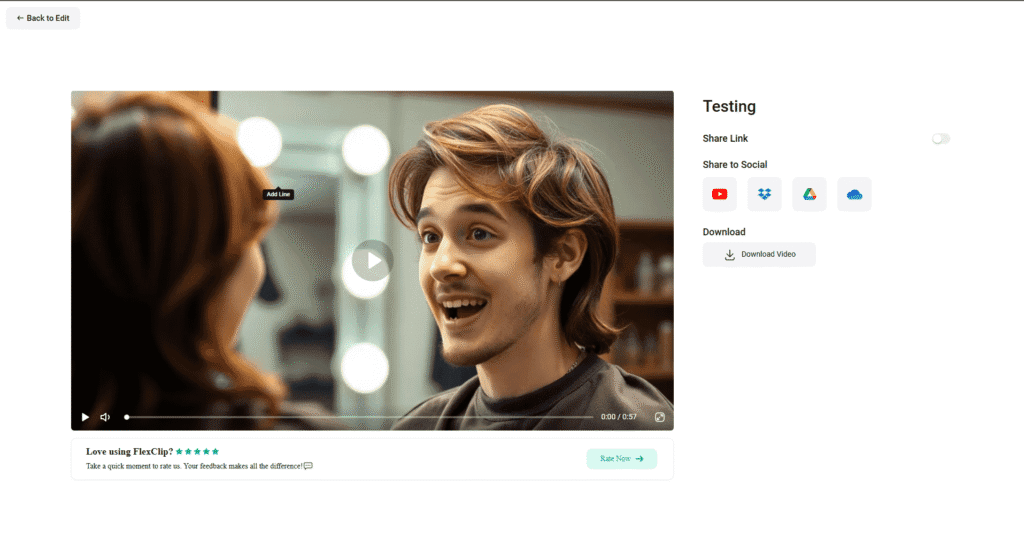
Step 5: Removing Watermark & Exporting Professional Videos
I want to clear something up here because this question comes up constantly.
FlexClip’s own free tier does NOT watermark your exports within your monthly plan limits. So if you’re creating inside FlexClip start to finish, you’re not dealing with a watermark problem. That’s different from how a lot of tools in this space work.
If you’re bringing footage IN from other tools that have their own watermarks — that’s a separate thing. For that specific situation, watermarkremover.io handles AI video watermark removal through AI processing. Some people run an external tool’s output through that free AI video watermark remover, then import the clean footage into FlexClip for editing and export. It works, it’s just an extra step.
For export settings within FlexClip:
- Free tier: 480p or 720p, watermark-free within plan limits, monthly project cap
- Paid plans: 1080p and 4K, unlimited exports, faster rendering queue
For Instagram Reels and TikTok, 720p is honestly fine — both platforms compress the video on upload anyway. For YouTube or anything client-facing where they’re going to scrutinize quality, the paid plan’s 1080p export is worth it.
Formats: MP4 for video, GIF for animations, PNG for thumbnails and stills.
The Tools I Keep Coming Back To (Deeper Dive)
AI Slideshow Maker — Underrated for Local Businesses
Nobody talks about this one enough. FlexClip’s free AI slideshow maker has quietly become one of my most-used features for certain client types — specifically service businesses that have lots of photos but no video footage.
Think about it. A home renovation contractor. A wedding photographer. A landscaping company. These businesses have hundreds of great images sitting in a Google Drive folder doing nothing. The AI slideshow generator takes those images, arranges them into a polished video slideshow with transitions, music, and text overlays — automatically.
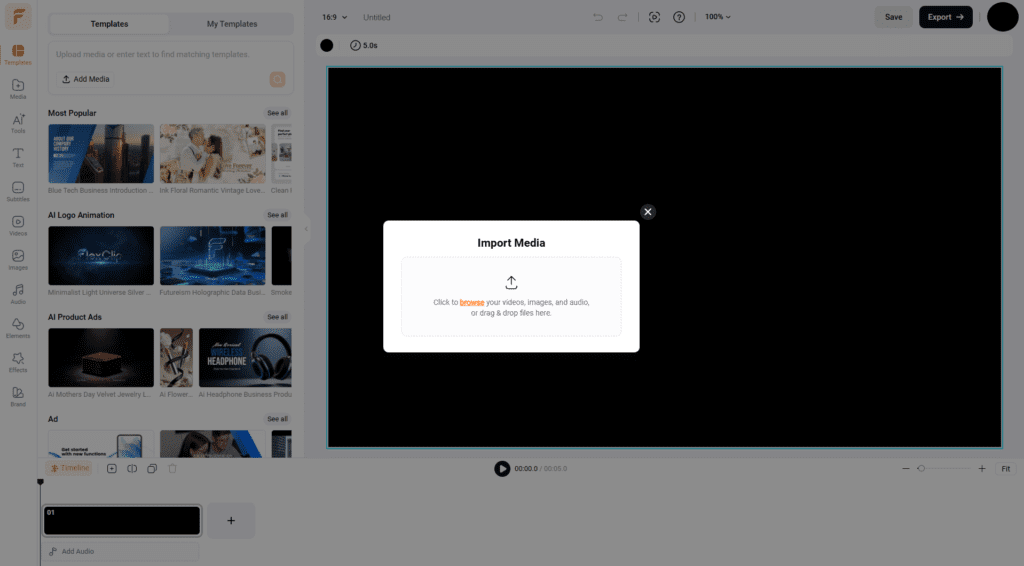
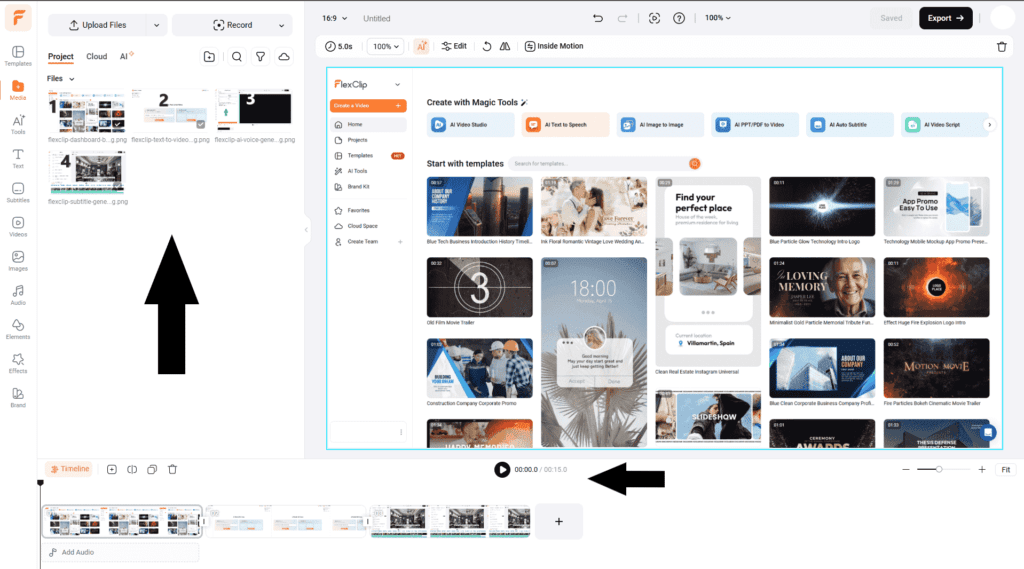
Here’s how it works: Click “Slideshow Maker” from the AI Tools menu. Upload your images in batch. Choose a transition style and music track. The slideshow maker AI sequences everything and generates a draft in under two minutes. Then you tweak the order, adjust timing on individual slides, swap the music if needed.
I used this for a client named Rachel who runs a home staging business in Phoenix. She had over 200 before/after photos from her projects but zero video content. We fed 20 of her best photos into the free slideshow maker and built a 90-second portfolio reel in about 35 minutes total. She posted it on LinkedIn. Got 14 direct inquiries in the first week. One turned into a $4,200 project.
The slideshow creator functionality in FlexClip isn’t flashy. But for businesses sitting on image assets they’re not using — it’s genuinely valuable.
I Personally Tested: Ran a batch of 25 product photos for a candle company client through the slideshow tool. Selected the “elegant” transition style, picked a soft acoustic track from FlexClip’s music library, added the brand name as an intro title card. Output was a clean 60-second product showcase video. The client’s previous approach was paying a freelancer $150 for similar videos. This took me 28 minutes and cost nothing.
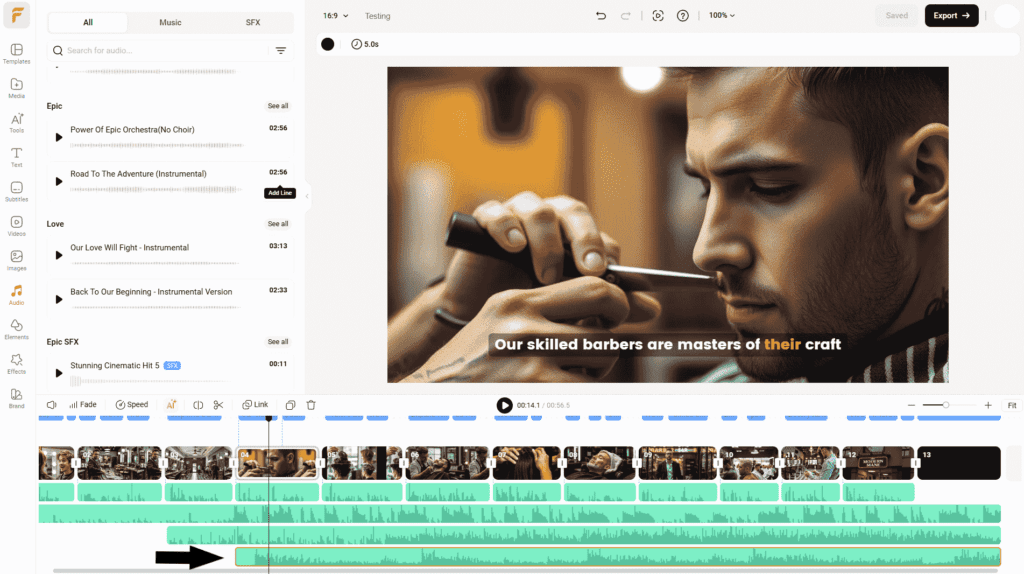
Audio Tools — The Part Most People Skip
Most small business owners focus entirely on the visual side of video content and treat audio as an afterthought. That’s a mistake. Bad audio kills good video. Every time.
FlexClip has a solid set of audio tools built into the editor that are genuinely underused.
Free AI Audio Editor: The free AI audio editor online inside FlexClip handles the basics — volume normalization, trimming, fading in and out, mixing multiple audio tracks. It’s not a full DAW. But for 90% of social media content, it does everything you need. The AI audio editor free feature automatically normalizes volume levels across your tracks, which is huge — nothing kills a video faster than audio that spikes and dips randomly.
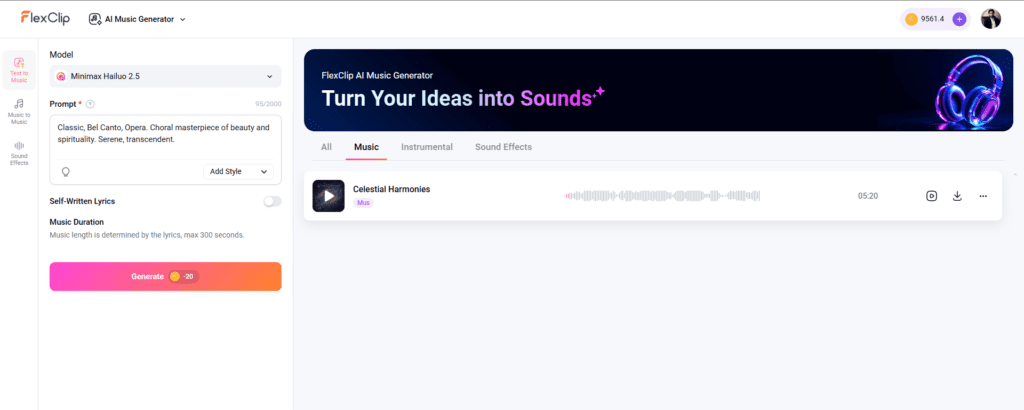
AI Audio Generator: Need background music that doesn’t trigger copyright claims? The free AI audio generator in FlexClip creates royalty-free background tracks based on mood and tempo inputs. Choose “upbeat,” “relaxed,” “professional,” or “dramatic” — the ai audio generator free tool generates a custom track. It’s not going to replace a real composer, but for background music on a social Reel it works well and you won’t get a copyright strike.
Speech to Text: Beyond subtitles, the speech to text AI free feature transcribes your video audio into a full text document — useful if you want to repurpose video content into a blog post or email newsletter. I use this for Tony’s YouTube videos regularly. He records a video, FlexClip transcribes it via the free ai audio editor, I edit the transcript into a newsletter. Two pieces of content from one recording session.
I Personally Tested: Used the audio editor AI tools to clean up a client interview video that had some background HVAC noise. The normalization tool reduced the hum noticeably — not perfectly, but enough to make the final video publishable. Saved us from re-recording the entire segment.
Advanced Use Cases: Getting More Out of FlexClip
AI Social Media Post Generator — More Than Just Video
Most people think of FlexClip purely as a video tool. But the AI social media post generator free functionality extends into static content too — and for small businesses that need to maintain posting consistency across platforms, this matters.
The free AI social media post generator lets you input a topic, your business type, and your tone preference — then generates designed social graphics ready for Instagram, Facebook, LinkedIn, or Pinterest. These aren’t just text on a colored background. They’re properly designed posts with hierarchy, typography, and visual structure.
For AI social media content creation at scale, here’s the workflow I use for clients:
- Start with a content theme for the week (e.g., “customer testimonials” or “before/after results”)
- Use the AI social media content generator to generate 5–7 graphic variations on that theme
- Use the free AI text to video generator to turn the best-performing concept into a video version
- Use the free AI subtitle generator to caption the video
- Export everything and schedule
One session, maybe 3 hours, and you’ve got a full week of AI generated social media posts — graphics, videos, captions, all consistent with your brand. The social media post generator AI inside FlexClip makes this kind of batching genuinely fast. The social media content generator free templates maintain visual consistency so everything looks like it came from the same brand, even if you made it all in one afternoon.
I Personally Tested: Built a full week of content for Diane’s jewelry shop using this exact workflow. Seven Instagram graphics, three short videos, two GIFs for Stories — all in one 3-hour Sunday session. Her posting consistency went from roughly twice a week to daily. Her follower growth rate doubled over the following month.
Video Upscaling — Getting Better Quality from Older Footage
FlexClip has a best free video upscaler capability that uses AI to enhance the resolution of lower-quality footage. If you’ve got older video content — stuff shot on an iPhone 7, or screen recordings at 480p — the upscaler can improve the output quality meaningfully before you export.
It’s not magic. It can’t turn a 240p clip into 4K. But it can take a 480p clip and make it look respectable at 720p. For businesses with older content archives they want to repurpose, this is a useful addition to the best free AI video tools kit.
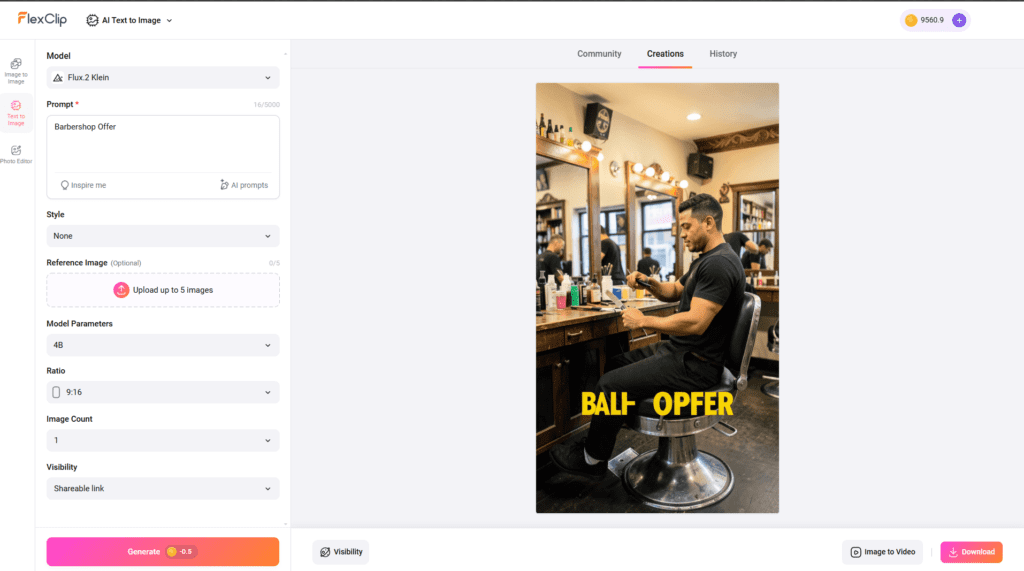
Transparent Background & Image Tools — More Use Cases Than You’d Think
I touched on the background remover earlier but want to expand because there are a few use cases people don’t think about immediately.
The transparent image maker inside FlexClip is useful beyond just product photos:
- Logo prep: Client sends their logo with a white background instead of transparent. The transparent png maker strips it instantly. One click. No Photoshop needed.
- Headshot cutouts for thumbnails: Grab a headshot, remove the background with the free transparent background maker, place it over a custom thumbnail background. This is exactly how professional YouTubers build thumbnails — now accessible without design software.
- Social media stickers: Cut out a product or graphic element using the transparent photo maker, save as a transparent PNG, use it as an overlay on video or photo content.
The background transparent maker quality in FlexClip is genuinely comparable to dedicated tools like Remove.bg for straightforward subjects. Where it struggles is with complex edges — hair, fur, fine detail. For product shots, logos, and simple cutouts, it’s excellent.
Real USA Small Business Use Cases & My Tests
Here’s what actually happened across my clients over a 60-day period:
Marcus — Atlanta Barbershop
- 8 Reels created, average production time dropped from 3+ hours to 26 minutes each
- Best Reel: 4,200 views, 180 saves, 12 new booking inquiries in one week
- Instagram followers: +340 over the month
Diane — Portland Handmade Jewelry Shop
- Built full product video library (14 videos) in one day
- Zero on-camera appearances — 100% free AI voiceovers
- Email campaigns using FlexClip GIFs from the gif maker AI: 34% higher CTR than previous static image emails
Tony — Dallas Fitness Coach
- YouTube thumbnail CTR: 2.9% → 4.4% average using the AI thumbnail maker for YouTube
- Created 6 YouTube videos plus matching thumbnails in a single weekend session
- Cut content production time by roughly 70% compared to his previous workflow
Rachel — Phoenix Home Staging
- Zero previous video content; built first portfolio reel using the free slideshow maker
- LinkedIn post: 14 direct inquiries, 1 converted project worth $4,200
For a deeper look at how FlexClip fits into a complete content system — including what other free AI for content creation tools to layer in alongside it — my full AI content workflow guide for USA small businesses covers exactly that.
Head-to-Head: FlexClip vs Other Tools
| Feature | FlexClip | CapCut | Canva | InVideo AI |
| Text to Video (Free) | ✅ Strong | ✅ Basic | ❌ | ✅ Limited free |
| AI Voiceover (Free) | ✅ 40+ voices | ✅ Basic | ✅ Limited | ✅ Limited |
| Subtitle Generator | ✅ Free | ✅ Free | ❌ | ✅ Paid tier |
| Thumbnail Maker | ✅ AI-powered | ✅ Basic | ✅ Templates | ❌ |
| Meme Generator | ✅ Built-in | ❌ | ✅ Basic | ❌ |
| GIF Maker | ✅ | ✅ | ✅ | ❌ |
| Background Remover | ✅ Free | ✅ Free | ✅ Paid | ❌ |
| Slideshow Maker | ✅ AI-powered | ❌ | ✅ Basic | ❌ |
| Audio Editor | ✅ Free | ✅ Basic | ❌ | ❌ |
| Watermark-Free Export | ✅ Free tier | ❌ Watermarked | ✅ | ❌ |
| All-in-One Dashboard | ✅ | Partial | Partial | ❌ |
FlexClip vs Dedicated AI Tools (Feature-by-Feature Honesty)
| Specific Feature | Best Dedicated Tool | FlexClip Quality | Worth Switching? |
| AI Voice Quality | ElevenLabs | 85% as good for short clips | Only for long-form narration |
| Video Editing Depth | Premiere Pro / DaVinci | 70% for social content | Only if you need advanced edits |
| Static Design | Canva | 75% for basic graphics | Only if design is your main output |
| Thumbnail Design | Photoshop | 80% for standard thumbnails | Only if pixel-level control needed |
| Subtitle Accuracy | Rev.com (human) | 92–95% on clear audio | Only for legal/formal transcription |
| Background Removal | Remove.bg | 85% on most subjects | Only for complex edge cases |
| GIF Creation | GIPHY | Comparable for short clips | No — FlexClip is fine |
| Slideshow Creation | Adobe Express | 80% comparable | No — FlexClip is fine |
vs CapCut: Better for mobile-native TikTok editing. Worse for business content across multiple formats. And the watermark on free exports is annoying. If you’re a TikTok-first business, CapCut has advantages. For everything else, FlexClip wins.
vs Canva: Still the best for static design. Video tools are catching up but not there yet. For video-first workflows, FlexClip is significantly deeper. Use both if you do heavy design work.
vs InVideo AI: Good free text to video AI output but meaningful features disappear behind a paywall fast. FlexClip’s free tier stretches further for most small business workflows.
The best free AI content creation tools conversation in 2026 keeps coming back to the same trade-off: depth versus breadth. Specialization versus consolidation. For most small businesses I work with, breadth wins every time.
One More Real Test Story
I want to share one more because I think it captures something important about how these tools work in practice.
I have a client — Maria — who runs a small tax preparation office in San Antonio. Not a glamorous industry. Not visually exciting. She came to me in January 2026 convinced that “video content isn’t for businesses like mine.”
We sat down for one afternoon with FlexClip. Used the free AI video generator from text to create a “Top 5 tax mistakes small businesses make” explainer video. Used the AI text to speech free online feature for narration because Maria didn’t want to be on camera. Added subtitles via the video subtitle generator. Made a thumbnail with the free youtube thumbnail maker using a bold red “WARNING” style graphic. Posted to YouTube and Facebook.
Two weeks later: 1,800 YouTube views — massive for a local tax office. 22 new client inquiries. 6 converted to paying clients. February revenue was her best February in nine years of running the business.
That’s not about FlexClip being magic. It’s about what happens when you remove the friction between “I have an idea” and “that idea is live content.” The free AI for content creation tools available in 2026 have genuinely closed that gap for small businesses in a way that wasn’t possible even two years ago.
Maria now produces two videos a month on her own. She sends me a screenshot every time one performs well.
FAQs
Do I need any video editing experience to use FlexClip?
None. If you can type and drag and drop, you can use FlexClip. I’ve trained clients in their 50s and 60s with zero tech background to use it confidently within one session.
Is FlexClip actually free or is there a bait-and-switch?
The free tier is real. Watermark-free exports within monthly limits, AI video generation, voiceover, subtitles, and thumbnails — all accessible without paying. Paid plans unlock higher resolution and more monthly projects.
How does the AI voiceover compare to ElevenLabs or PlayHT?
On short clips under 60 seconds — genuinely competitive. For long-form narration over 3–4 minutes, ElevenLabs still sounds more natural. But as an AI voice generator free online tool, FlexClip is the best I’ve tested at zero cost.
Can I use this specifically for Instagram Reels and YouTube Shorts?
Yes. 9:16 aspect ratio option is right there in setup. The whole tool is optimized for short-form vertical content. The free AI video maker output quality is appropriate for both platforms.
How does the speech to text accuracy compare to dedicated transcription tools?
About 92–95% on clean audio in standard American English. Comparable to Rev.com for short clips. Drops to 85–88% with background noise or strong accents.
Can FlexClip remove watermarks from other tools’ videos?
No — and don’t expect it to. For that, use a dedicated AI tool to remove watermark from video like watermarkremover.io as a separate step before importing into FlexClip.
What’s the best way to use FlexClip for social media content?
Batch it. Block out 2–3 hours, use the social media post AI and video tools together to create a full week of content in one session. Consistency is what drives growth on social.
Can I mix my own footage with the AI-generated content?
Yes — upload your own clips, photos, and audio and mix them freely with FlexClip’s stock library. The free AI video editing tools handle mixed-source projects seamlessly.
How fast does the text to video generation actually take?
Initial generation is 60–90 seconds via the ai video generator from text free feature. Budget another 15–30 minutes for editing. Experienced users get it down to 10–15 minutes.
Is it good for e-commerce product videos specifically?
Very. The transparent photo maker, AI voiceover, and product-focused templates make FlexClip one of the better free AI tools for content creation in the e-commerce space.
Does FlexClip have templates for my specific industry?
Probably — restaurant, real estate, fitness, retail, education, beauty, and more are all covered. The template library filters by industry.
What’s the best free video upscaler for small business video content?
FlexClip’s built-in upscaler handles most social content use cases. For more intensive upscaling, Topaz Video AI is the gold standard but it’s paid. For free and integrated into your workflow, FlexClip is the most practical option.
Can I use FlexClip’s AI social media post generator for LinkedIn specifically?
Yes — LinkedIn dimensions and formatting are supported. The ai for social media posts feature outputs are available in LinkedIn-optimized formats including 1200×628 for link posts.
Final Verdict & My Recommendation
After six months of serious daily use across multiple client businesses — different industries, different content needs, different levels of technical comfort — my position on FlexClip is straightforward.
It’s the best single tool a USA small business owner can use in 2026 for consistent, professional content without a team or a big budget. Not because it’s the best at any one specific thing. Because it’s reliably good at everything a small business actually needs — the free AI video generator, the ai voice over generator free, the subtitle automation, the free AI youtube thumbnail maker, the ai meme generator free, the free AI slideshow maker, the ai gif creator, the free transparent background maker — all inside one login, all free to start.
Start with the text to video free AI feature. Make one piece of content. Time yourself. Then compare that to how long it used to take you. That’s the whole argument for FlexClip, right there in your own data.
Ready to build your own custom AI content workflow — or need a full AI system designed and deployed for your business from scratch? Our expert AI developer team handles everything from tool selection to full automation setup. Book a free 15-min consult:
Confused between AI tools? Try our free comparison tool – no signup needed:

AI Nexte Editorial Team researches, tests, and reviews AI tools, workflows, and automation platforms for businesses, creators, and professionals. Our content is based on hands-on testing, industry research, feature analysis, and real-world use cases.








No Comments